

/authorise) integration, which we no longer accept new integrations with.
We strongly recommend migrating to the newer Native 3D Secure 2 for Android integration. To use this newer integration, you must also migrate to the Checkout API.
PSD2 compliance
If you are implementing 3D Secure to comply with PSD2 SCA, learn more from our comprehensive guide. The Adyen 3DS2 Android SDK gets the device fingerprint and presents the challenge to your shopper. From your server, you need to send a payment request, the encrypted device fingerprint, and the challenge result to Adyen. In a full 3D Secure 2 implementation, a payment can go through either a frictionless or a challenge authentication flow before it can be authorised. If you only want to perform a 3D Secure 2 authentication and then authorise the payment later, refer to the Authentication-only documentation.How it works
Here’s how a 3D Secure 2 challenge authentication flow works: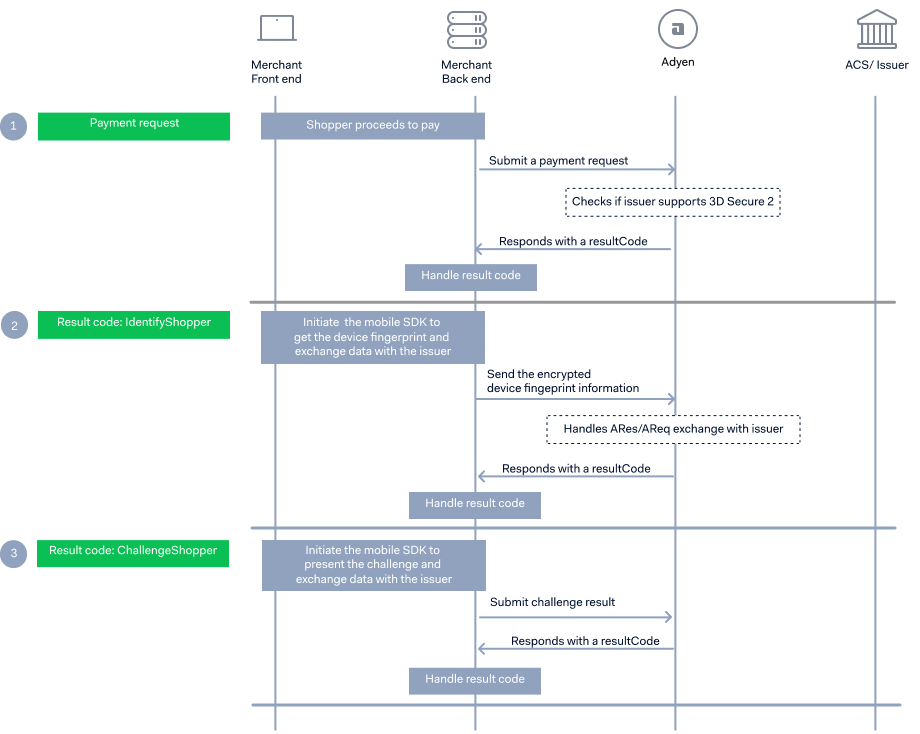
- Submit a payment request with the required 3D Secure 2 objects to start the authentication process. Build your implementation depending on the
resultCodereturned in the response. If the transaction is exempted from 3D Secure, you might get an Authorised result code. - If you receive an IdentifyShopper
resultCode, get the 3D Secure 2 device fingerprint and send the encrypted device fingerprint information to Adyen. After you send the device fingerprint, it is possible that you receive an AuthorisedresultCodein the response. This means that the 3D Secure 2 authentication was frictionless, and the payment was authorised. - If you receive ChallengeShopper
resultCode, this means that the issuer requires further shopper interaction and you need to present a challenge to the shopper. - After the 3D Secure 2 flow is complete, whether the transaction is successful or not, close the transaction and clean up the
ThreeDS2Service.INSTANCE.
resultCode. If you do not want to automatically fall back to 3D Secure 1, contact our Support Team.
To test your integration, see Testing 3D Secure 2.
Before you begin
Adyen 3DS2 Android
Subscribe to our GitHub repository to get the latest updates and versions. Before you begin to integrate, make sure you have followed the Get started with Adyen guide to:- Get an overview of the steps needed to accept live payments.
- Create your test account.
- Get your API Key. Save a copy, because you’ll need it for API calls you make to the Adyen payments platform.
- Install one of our Libraries to connect with the Adyen APIs.
- Install the latest SDK version either through Maven Central or our GitHub repository. You must use version 2.2.9 or later to trigger the 3D Secure 2 native flow.
- Maven Central
- GitHub
Install the SDK through Maven Central.Add this line to your
build.gradle file. implementation "com.adyen.threeds:adyen-3ds2:<latestSDKVersion>"
Install the SDK through our GitHub repository.Copy the SDK package
You can send additional parameters for better authorization rates, and to increase the chance of a frictionless flow. You do not have to send all the additional parameters. Send parameters that you know you can provide accurately, or that are mandatory in specific scenarios.Here is an example of how to make a request for a EUR 150 purchase:
You receive a response containing aSave
When prompted for 3D Secure 2 text challenges, use the following credentials:
1 This card doesn’t require a CVC.When you make a payment request with these cards, you’ll receive the following result codes depending on your integration:
To test the frictionless flow, specify in your payment request:
adyen-3ds2.aar to the /libs folder in your module and add this line to your module’s build.gradle file. implementation "com.adyen.threeds:adyen-3ds2:<latestSDKVersion>@aar"
Step 1: Submit a payment request
Collect your shopper’s card details then make a payment with a POST /authorise request, and include the following:| Parameter name | Required | Description |
|---|---|---|
| card |  | Object that contains the shopper’s card details. |
| threeDS2RequestData.deviceChannel | | Set to app. |
| browserInfo | | Object that contains the userAgent and acceptHeader fields. Indicates that your integration can handle 3D Secure 1 redirect authentication in case the transaction is routed to 3D Secure 1. If your integration is unable to generate this information, you can send the same data as in the request below. |
| sdkVersion | | We recommend you use the ThreeDS2Service.INSTANCE.getSDKVersion() function to determine your 3DS2 sdkVersion. You can also get the sdkVersion from Github |
curl https://pal-test.adyen.com/pal/servlet/Payment/v68/authorise \
-H 'x-api-key: ADYEN_API_KEY' \
-H 'content-type: application/json' \
-d '{
    "amount":{
      "currency":"EUR",
      "value":1500
    },
    "merchantAccount":"YOUR_MERCHANT_ACCOUNT",
    "reference":"YOUR_ORDER_NUMBER",
    "threeDS2RequestData":{
      "deviceChannel":"app",
      "{hint:Required to trigger native. Get your sdkVersion and send it here. Do not hard code your sdkVersion.}sdkVersion{/hint}": "STATE_DATA"
  },
  "card":{
  "cvc":"737",
  "expiryMonth":"03",
  "expiryYear":"2030",
  "holderName":"Simon Hopper",
  "number":"4917610000000000"
  },
  "{hint:Required for 3D Secure 1}browserInfo{/hint}": {
  "userAgent":"Mozilla/5.0 (Linux; Android 6.0.1; Nexus 6P Build/MMB29P) AppleWebKit/537.36 (KHTML, like Gecko) Chrome/47.0.2526.83 Mobile Safari/537.36",
  "acceptHeader":"text\/html,application\/xhtml+xml,application\/xml;q=0.9,image\/webp,image\/apng,*\/*;q=0.8"
  }
}'
// Adyen Java API Library v25.0.0
import com.adyen.Client;
import com.adyen.enums.Environment;
import com.adyen.model.payment.*;
import java.time.OffsetDateTime;
import java.util.*;
import com.adyen.service.*;

Client client = new Client("ADYEN_API_KEY", Environment.TEST);

// Create the request object(s)
Amount amount = new Amount()
  .currency("EUR")
  .value(1500L);

ThreeDS2RequestData threeDS2RequestData = new ThreeDS2RequestData()
  .sdkVersion("STATE_DATA")
  .deviceChannel("app");

Card card = new Card()
  .cvc("737")
  .number("4917610000000000")
  .holderName("Simon Hopper")
  .expiryMonth("03")
  .expiryYear("2030");

BrowserInfo browserInfo = new BrowserInfo()
  .acceptHeader("text/html,application/xhtml+xml,application/xml;q=0.9,image/webp,image/apng,*/*;q=0.8")
  .userAgent("Mozilla/5.0 (Linux; Android 6.0.1; Nexus 6P Build/MMB29P) AppleWebKit/537.36 (KHTML, like Gecko) Chrome/47.0.2526.83 Mobile Safari/537.36");

PaymentRequest paymentRequest = new PaymentRequest()
  .reference("YOUR_ORDER_NUMBER")
  .amount(amount)
  .merchantAccount("YOUR_MERCHANT_ACCOUNT")
  .threeDS2RequestData(threeDS2RequestData)
  .card(card)
  .browserInfo(browserInfo);

// Make the API call
paymentApi service = new paymentApi(client);
PaymentResult response = service.authorise(paymentRequest, null);
// Adyen PHP API Library v17.4.0
use Adyen\Client;
use Adyen\Environment;
use Adyen\Model\Payments\Amount;
use Adyen\Model\Payments\ThreeDS2RequestData;
use Adyen\Model\Payments\Card;
use Adyen\Model\Payments\BrowserInfo;
use Adyen\Model\Payments\PaymentRequest;
use Adyen\Service\Payments\PaymentsApi;

$client = new Client();
$client->setXApiKey("ADYEN_API_KEY");
$client->setEnvironment(Environment::TEST);


// Create the request object(s)
$amount = new Amount();
$amount
  ->setCurrency("EUR")
  ->setValue(1500);

$threeDS2RequestData = new ThreeDS2RequestData();
$threeDS2RequestData
  ->setSdkVersion("STATE_DATA")
  ->setDeviceChannel("app");

$card = new Card();
$card
  ->setCvc("737")
  ->setNumber("4917610000000000")
  ->setHolderName("Simon Hopper")
  ->setExpiryMonth("03")
  ->setExpiryYear("2030");

$browserInfo = new BrowserInfo();
$browserInfo
  ->setAcceptHeader("text/html,application/xhtml+xml,application/xml;q=0.9,image/webp,image/apng,*/*;q=0.8")
  ->setUserAgent("Mozilla/5.0 (Linux; Android 6.0.1; Nexus 6P Build/MMB29P) AppleWebKit/537.36 (KHTML, like Gecko) Chrome/47.0.2526.83 Mobile Safari/537.36");

$paymentRequest = new PaymentRequest();
$paymentRequest
  ->setReference("YOUR_ORDER_NUMBER")
  ->setAmount($amount)
  ->setMerchantAccount("YOUR_MERCHANT_ACCOUNT")
  ->setThreeDS2RequestData($threeDS2RequestData)
  ->setCard($card)
  ->setBrowserInfo($browserInfo);

// Make the API call
$service = new PaymentsApi($client);
$response = $service->authorise($paymentRequest);
// Adyen .net API Library v14.4.0
using Adyen;
using Environment = Adyen.Model.Environment;
using Adyen.Model;
using Adyen.Model.Payment;
using Adyen.Service;

var config = new Config()
{
    XApiKey = "ADYEN_API_KEY",
    Environment = Environment.Test
};
var client = new Client(config);

// Create the request object(s)
Amount amount = new Amount
{
  Currency = "EUR",
  Value = 1500
};

ThreeDS2RequestData threeDS2RequestData = new ThreeDS2RequestData
{
  SdkVersion = "STATE_DATA",
  DeviceChannel = "app"
};

Card card = new Card
{
  Cvc = "737",
  Number = "4917610000000000",
  HolderName = "Simon Hopper",
  ExpiryMonth = "03",
  ExpiryYear = "2030"
};

BrowserInfo browserInfo = new BrowserInfo
{
  AcceptHeader = "text/html,application/xhtml+xml,application/xml;q=0.9,image/webp,image/apng,*/*;q=0.8",
  UserAgent = "Mozilla/5.0 (Linux; Android 6.0.1; Nexus 6P Build/MMB29P) AppleWebKit/537.36 (KHTML, like Gecko) Chrome/47.0.2526.83 Mobile Safari/537.36"
};

PaymentRequest paymentRequest = new PaymentRequest
{
  Reference = "YOUR_ORDER_NUMBER",
  Amount = amount,
  MerchantAccount = "YOUR_MERCHANT_ACCOUNT",
  ThreeDS2RequestData = threeDS2RequestData,
  Card = card,
  BrowserInfo = browserInfo
};

// Make the API call
var service = new PaymentService(client);
var response = service.Authorise(paymentRequest);
// Adyen Node API Library v16.2.0
// Require the parts of the module you want to use
const { Client, PaymentAPI } = require('@adyen/api-library');
// Initialize the client object
const client = new Client({apiKey: "ADYEN_API_KEY", environment: "TEST"});

// Create the request object(s)
const paymentRequest = {
  amount: {
    currency: "EUR",
    value: 1500
  },
  merchantAccount: "YOUR_MERCHANT_ACCOUNT",
  reference: "YOUR_ORDER_NUMBER",
  threeDS2RequestData: {
    deviceChannel: "app",
    sdkVersion: "STATE_DATA"
  },
  card: {
    cvc: "737",
    expiryMonth: "03",
    expiryYear: "2030",
    holderName: "Simon Hopper",
    number: "4917610000000000"
  },
  browserInfo: {
    userAgent: "Mozilla/5.0 (Linux; Android 6.0.1; Nexus 6P Build/MMB29P) AppleWebKit/537.36 (KHTML, like Gecko) Chrome/47.0.2526.83 Mobile Safari/537.36",
    acceptHeader: "text/html,application/xhtml+xml,application/xml;q=0.9,image/webp,image/apng,*/*;q=0.8"
  }
}

// Make the API call
const paymentAPI = new PaymentAPI(client);
const response = paymentAPI.authorise(paymentRequest);
// Adyen Go API Library v9.3.0
import (
  "context"
  "github.com/adyen/adyen-go-api-library/v9/src/common"
  "github.com/adyen/adyen-go-api-library/v9/src/adyen"
  "github.com/adyen/adyen-go-api-library/v9/src/payments"
)
client := adyen.NewClient(&common.Config{
  ApiKey:      "ADYEN_API_KEY",
  Environment: common.TestEnv,
})

// Create the request object(s)
amount := payments.Amount{
  Currency: "EUR",
  Value: 1500,
}

threeDS2RequestData := payments.ThreeDS2RequestData{
  SdkVersion: common.PtrString("STATE_DATA"),
  DeviceChannel: "app",
}

card := payments.Card{
  Cvc: common.PtrString("737"),
  Number: common.PtrString("4917610000000000"),
  HolderName: common.PtrString("Simon Hopper"),
  ExpiryMonth: common.PtrString("03"),
  ExpiryYear: common.PtrString("2030"),
}

browserInfo := payments.BrowserInfo{
  AcceptHeader: "text/html,application/xhtml+xml,application/xml;q=0.9,image/webp,image/apng,*/*;q=0.8",
  UserAgent: "Mozilla/5.0 (Linux; Android 6.0.1; Nexus 6P Build/MMB29P) AppleWebKit/537.36 (KHTML, like Gecko) Chrome/47.0.2526.83 Mobile Safari/537.36",
}

paymentRequest := payments.PaymentRequest{
  Reference: "YOUR_ORDER_NUMBER",
  Amount: amount,
  MerchantAccount: "YOUR_MERCHANT_ACCOUNT",
  ThreeDS2RequestData: &threeDS2RequestData,
  Card: &card,
  BrowserInfo: &browserInfo,
}

// Make the API call
service := client.Payments()
req := service.PaymentsApi.AuthoriseInput().PaymentRequest(paymentRequest)
res, httpRes, err := service.PaymentsApi.Authorise(context.Background(), req)
# Adyen Python API Library v12.2.0
import Adyen

adyen = Adyen.Adyen()
adyen.client.xapikey = "ADYEN_API_KEY"
adyen.client.platform = "test" # The environment to use library in.

# Create the request object(s)
json_request = {
  "amount": {
    "currency": "EUR",
    "value": 1500
  },
  "merchantAccount": "YOUR_MERCHANT_ACCOUNT",
  "reference": "YOUR_ORDER_NUMBER",
  "threeDS2RequestData": {
    "deviceChannel": "app",
    "sdkVersion": "STATE_DATA"
  },
  "card": {
    "cvc": "737",
    "expiryMonth": "03",
    "expiryYear": "2030",
    "holderName": "Simon Hopper",
    "number": "4917610000000000"
  },
  "browserInfo": {
    "userAgent": "Mozilla/5.0 (Linux; Android 6.0.1; Nexus 6P Build/MMB29P) AppleWebKit/537.36 (KHTML, like Gecko) Chrome/47.0.2526.83 Mobile Safari/537.36",
    "acceptHeader": "text/html,application/xhtml+xml,application/xml;q=0.9,image/webp,image/apng,*/*;q=0.8"
  }
}

# Make the API call
result = adyen.payment.payments_api.authorise(request=json_request)
# Adyen Ruby API Library v9.3.0
require "adyen-ruby-api-library"

adyen = Adyen::Client.new
adyen.api_key = 'ADYEN_API_KEY'
adyen.env = :test # Set to "live" for live environment

# Create the request object(s)
request_body = {
  :amount => {
    :currency => 'EUR',
    :value => 1500
  },
  :merchantAccount => 'YOUR_MERCHANT_ACCOUNT',
  :reference => 'YOUR_ORDER_NUMBER',
  :threeDS2RequestData => {
    :deviceChannel => 'app',
    :sdkVersion => 'STATE_DATA'
  },
  :card => {
    :cvc => '737',
    :expiryMonth => '03',
    :expiryYear => '2030',
    :holderName => 'Simon Hopper',
    :number => '4917610000000000'
  },
  :browserInfo => {
    :userAgent => 'Mozilla/5.0 (Linux; Android 6.0.1; Nexus 6P Build/MMB29P) AppleWebKit/537.36 (KHTML, like Gecko) Chrome/47.0.2526.83 Mobile Safari/537.36',
    :acceptHeader => 'text/html,application/xhtml+xml,application/xml;q=0.9,image/webp,image/apng,*/*;q=0.8'
  }
}

# Make the API call
result = adyen.payment.payments_api.authorise(request_body)
// Adyen Node API Library v16.2.0
// Require the parts of the module you want to use
import { Client, PaymentAPI, Types } from "@adyen/api-library";
// Initialize the client object
const client = new Client({apiKey: "ADYEN_API_KEY", environment: "TEST"});

// Create the request object(s)
const amount: Types.payment.Amount = {
  currency: "EUR",
  value: 1500
};

const threeDS2RequestData: Types.payment.ThreeDS2RequestData = {
  sdkVersion: "STATE_DATA",
  deviceChannel: "app"
};

const card: Types.payment.Card = {
  cvc: "737",
  number: "4917610000000000",
  holderName: "Simon Hopper",
  expiryMonth: "03",
  expiryYear: "2030"
};

const browserInfo: Types.payment.BrowserInfo = {
  acceptHeader: "text/html,application/xhtml+xml,application/xml;q=0.9,image/webp,image/apng,*/*;q=0.8",
  userAgent: "Mozilla/5.0 (Linux; Android 6.0.1; Nexus 6P Build/MMB29P) AppleWebKit/537.36 (KHTML, like Gecko) Chrome/47.0.2526.83 Mobile Safari/537.36"
};

const paymentRequest: Types.payment.PaymentRequest = {
  reference: "YOUR_ORDER_NUMBER",
  amount: amount,
  merchantAccount: "YOUR_MERCHANT_ACCOUNT",
  threeDS2RequestData: threeDS2RequestData,
  card: card,
  browserInfo: browserInfo
};

// Make the API call
const paymentAPI = new PaymentAPI(client);
const response = paymentAPI.authorise(paymentRequest);
You receive a response containing a
resultCode of:-
IdentifyShopper. This means that you need to perform the Identify the shopper flow. You also get the following parameters from the response, which you’ll need to create a transaction in the SDK:
additionalData.threeds2.threeDS2DirectoryServerInformation.directoryServerIdadditionalData.threeds2.threeDS2DirectoryServerInformation.publicKeyadditionalData.threeds2.threeDS2DirectoryServerInformation.rootCertificatesadditionalData.threeds2.threeDS2ResponseData.messageVersion
/authorise response and pass them to the SDK.For a complete list of resultCode values and the actions you need to take, see Result codes.Here’s an example of a response showing an IdentifyShopper result code:Payment response{
"additionalData": {
"threeds2.threeDSServerTransID": "055fadfb-9fe4-4e70-99f0-9b8935bf1eb2",
"threeds2.threeDS2DirectoryServerInformation.algorithm": "RSA",
"threeds2.threeDS2ResponseData.messageVersion" : "2.1.0",
"threeds2.threeDS2Token": "BQABAQC2LEWucYNwQRzhH9c1/hup5ZZa9HUehFbwdC86PAfhpGJ/+...",
"threeds2.threeDS2DirectoryServerInformation.directoryServerId": "A000000003",
"threeds2.threeDS2DirectoryServerInformation.publicKey": "eyJrdHkiOiJSU0EiLCJlIjoiQVFBQiIsIm4iOiI4VFBxZkFQ==...",
"threeds2.threeDS2DirectoryServerInformation.rootCertificates": "........"
},
"pspReference": "8835495304426403",
"resultCode": "IdentifyShopper"
}
additionalData.threeds2.threeDS2Token and include it in every request.Step 2: Get the 3D Secure 2 device fingerprint
If your server receives an IdentifyShopperresultCode, start the 3D Secure 2 device fingerprinting process.-
Create an instance of
ConfigParameterspassing thedirectoryServerId, thepublicKeyand therootCertificatesparameters from the/authoriseresponse or from your prefetched cached keys.ConfigParameters configParameters = new AdyenConfigParameters.Builder( {hint:The directoryServerId from the authorise response}directoryServerId{/hint}, {hint:The publicKey from the authorise response}directoryServerPublicKey{/hint}, {hint:The rootCertificates from the authorise response}directoryServerRootCertificates{/hint} // null if using prefetched device fingerprinting keys. ).build(); -
Use
ThreeDS2Service.INSTANCEto create a transaction.-
When using Adyen 3DS2 Android SDK version 2.2.0 and later, you must pass the value of
additionalData.threeds2.threeDS2ResponseData.messageVersionfrom the/authoriseresponse intocreateTransaction. For more information about the latest SDK version, refer to Migrating to 3DS2 SDK version 2.2.0.
Transactioninstance until the transaction is complete. Create a transaction in the SDKThreeDS2Service.INSTANCE.initialize(/*Activity*/ this, configParameters, null, null); Transaction mTransaction = ThreeDS2Service.INSTANCE.createTransaction( null, {hint:The messageVersion from the authorise response}messageVersion{/hint} ); -
When using Adyen 3DS2 Android SDK version 2.2.0 and later, you must pass the value of
-
Use the
AuthenticationRequestParametersto get the device fingerprint information.You’ll get the following information:AuthenticationRequestParameters authenticationRequestParameters = mTransaction.getAuthenticationRequestParameters();transaction.authenticationRequestParameters.deviceDatatransaction.authenticationRequestParameters.SDKTransactionIDtransaction.authenticationRequestParameters.SDKAppIDtransaction.authenticationRequestParameters.SDKReferenceNumbertransaction.authenticationRequestParameters.SDKEphemeralPublicKeytransaction.authenticationRequestParameters.messageVersion
-
From your server, make a POST /authorise3ds2 request to send the encrypted device fingerprint information to Adyen:
-
sdkEncData: Device data -
sdkTransID: SDK Transaction ID -
sdkAppID: SDK App ID -
sdkReferenceNumber: SDK Reference Number -
sdkEphemPubKey: The SDK provides output as a string. Transform this string into a JSON object to send in your /authorise3ds2 request. -
messageVersion: 3D Secure 2 protocol version You can send additional parameters for better authorization rates, and to increase the chance of a frictionless flow. You do not have to send all the additional parameters. Send parameters that you know you can provide accurately, or that are mandatory in specific scenarios.
curl
curl https://pal-test.adyen.com/pal/servlet/Payment/v68/authorise3ds2 \
-H 'x-api-key: ADYEN_API_KEY' \
-H 'content-type: application/json' \
-d '{
  "merchantAccount": "YOUR_MERCHANT_ACCOUNT",
  "threeDS2RequestData": {
    "deviceChannel": "app",
    "sdkAppID": "9063b12c-fcde-43c7-b28e-8d0af5520e8a",
    "sdkEncData": "<device-fingerprint>",
    "sdkEphemPubKey": {
        "crv": "P-256",
        "kty": "EC",
        "x": "LYImJkRzS92vogM6AUPCBhJ20VagSe8IL0Q9SdisUSo",
        "y": "Rav4sKHnLUIUHVdyR4dyV7G2_EeAnuCn_6621ZhqZYU"
    },
    "sdkReferenceNumber": "3DS_LOA_SDK_ADBV_739485_94783",
    "sdkTransID": "b60c9879-ac77-4918-a317-7b01c4317053/8Q==..",
    "messageVersion": "2.2.0"
  }
}'
Java
// Adyen Java API Library v25.0.0
import com.adyen.Client;
import com.adyen.enums.Environment;
import com.adyen.model.payment.*;
import java.time.OffsetDateTime;
import java.util.*;
import com.adyen.service.*;

Client client = new Client("ADYEN_API_KEY", Environment.TEST);

// Create the request object(s)
SDKEphemPubKey sDKEphemPubKey2 = new SDKEphemPubKey()
  .kty("EC")
  .crv("P-256")
  .x("LYImJkRzS92vogM6AUPCBhJ20VagSe8IL0Q9SdisUSo")
  .y("Rav4sKHnLUIUHVdyR4dyV7G2_EeAnuCn_6621ZhqZYU");

ThreeDS2RequestData threeDS2RequestData2 = new ThreeDS2RequestData()
  .sdkReferenceNumber("3DS_LOA_SDK_ADBV_739485_94783")
  .sdkAppID("9063b12c-fcde-43c7-b28e-8d0af5520e8a")
  .sdkEncData("<device-fingerprint>")
  .messageVersion("2.2.0")
  .sdkTransID("b60c9879-ac77-4918-a317-7b01c4317053/8Q==..")
  .deviceChannel("app")
  .sdkEphemPubKey(sDKEphemPubKey2);

PaymentRequest3ds2 paymentRequest3ds2 = new PaymentRequest3ds2()
  .merchantAccount("YOUR_MERCHANT_ACCOUNT")
  .threeDS2RequestData(threeDS2RequestData2);

// Make the API call
paymentApi service = new paymentApi(client);
PaymentResult response = service.authorise3ds2(paymentRequest3ds2, null);
PHP
// Adyen PHP API Library v17.4.0
use Adyen\Client;
use Adyen\Environment;
use Adyen\Model\Payments\SDKEphemPubKey;
use Adyen\Model\Payments\ThreeDS2RequestData;
use Adyen\Model\Payments\PaymentRequest3ds2;
use Adyen\Service\Payments\PaymentsApi;

$client = new Client();
$client->setXApiKey("ADYEN_API_KEY");
$client->setEnvironment(Environment::TEST);


// Create the request object(s)
$sDKEphemPubKey2 = new SDKEphemPubKey();
$sDKEphemPubKey2
  ->setKty("EC")
  ->setCrv("P-256")
  ->setX("LYImJkRzS92vogM6AUPCBhJ20VagSe8IL0Q9SdisUSo")
  ->setY("Rav4sKHnLUIUHVdyR4dyV7G2_EeAnuCn_6621ZhqZYU");

$threeDS2RequestData2 = new ThreeDS2RequestData();
$threeDS2RequestData2
  ->setSdkReferenceNumber("3DS_LOA_SDK_ADBV_739485_94783")
  ->setSdkAppID("9063b12c-fcde-43c7-b28e-8d0af5520e8a")
  ->setSdkEncData("<device-fingerprint>")
  ->setMessageVersion("2.2.0")
  ->setSdkTransID("b60c9879-ac77-4918-a317-7b01c4317053/8Q==..")
  ->setDeviceChannel("app")
  ->setSdkEphemPubKey($sDKEphemPubKey2);

$paymentRequest3ds2 = new PaymentRequest3ds2();
$paymentRequest3ds2
  ->setMerchantAccount("YOUR_MERCHANT_ACCOUNT")
  ->setThreeDS2RequestData($threeDS2RequestData2);

// Make the API call
$service = new PaymentsApi($client);
$response = $service->authorise3ds2($paymentRequest3ds2);
C#
// Adyen .net API Library v14.4.0
using Adyen;
using Environment = Adyen.Model.Environment;
using Adyen.Model;
using Adyen.Model.Payment;
using Adyen.Service;

var config = new Config()
{
    XApiKey = "ADYEN_API_KEY",
    Environment = Environment.Test
};
var client = new Client(config);

// Create the request object(s)
SDKEphemPubKey sDKEphemPubKey2 = new SDKEphemPubKey
{
  Kty = "EC",
  Crv = "P-256",
  X = "LYImJkRzS92vogM6AUPCBhJ20VagSe8IL0Q9SdisUSo",
  Y = "Rav4sKHnLUIUHVdyR4dyV7G2_EeAnuCn_6621ZhqZYU"
};

ThreeDS2RequestData threeDS2RequestData2 = new ThreeDS2RequestData
{
  SdkReferenceNumber = "3DS_LOA_SDK_ADBV_739485_94783",
  SdkAppID = "9063b12c-fcde-43c7-b28e-8d0af5520e8a",
  SdkEncData = "<device-fingerprint>",
  MessageVersion = "2.2.0",
  SdkTransID = "b60c9879-ac77-4918-a317-7b01c4317053/8Q==..",
  DeviceChannel = "app",
  SdkEphemPubKey = sDKEphemPubKey2
};

PaymentRequest3ds2 paymentRequest3ds2 = new PaymentRequest3ds2
{
  MerchantAccount = "YOUR_MERCHANT_ACCOUNT",
  ThreeDS2RequestData = threeDS2RequestData2
};

// Make the API call
var service = new PaymentService(client);
var response = service.Authorise3ds2(paymentRequest3ds2);
NodeJS (JavaScript)
// Adyen Node API Library v16.2.0
// Require the parts of the module you want to use
const { Client, PaymentAPI } = require('@adyen/api-library');
// Initialize the client object
const client = new Client({apiKey: "ADYEN_API_KEY", environment: "TEST"});

// Create the request object(s)
const paymentRequest3ds2 = {
  merchantAccount: "YOUR_MERCHANT_ACCOUNT",
  threeDS2RequestData: {
    deviceChannel: "app",
    sdkAppID: "9063b12c-fcde-43c7-b28e-8d0af5520e8a",
    sdkEncData: "<device-fingerprint>",
    sdkEphemPubKey: {
      crv: "P-256",
      kty: "EC",
      x: "LYImJkRzS92vogM6AUPCBhJ20VagSe8IL0Q9SdisUSo",
      y: "Rav4sKHnLUIUHVdyR4dyV7G2_EeAnuCn_6621ZhqZYU"
    },
    sdkReferenceNumber: "3DS_LOA_SDK_ADBV_739485_94783",
    sdkTransID: "b60c9879-ac77-4918-a317-7b01c4317053/8Q==..",
    messageVersion: "2.2.0"
  }
}

// Make the API call
const paymentAPI = new PaymentAPI(client);
const response = paymentAPI.authorise3ds2(paymentRequest3ds2);
Go
// Adyen Go API Library v9.3.0
import (
  "context"
  "github.com/adyen/adyen-go-api-library/v9/src/common"
  "github.com/adyen/adyen-go-api-library/v9/src/adyen"
  "github.com/adyen/adyen-go-api-library/v9/src/payments"
)
client := adyen.NewClient(&common.Config{
  ApiKey:      "ADYEN_API_KEY",
  Environment: common.TestEnv,
})

// Create the request object(s)
sDKEphemPubKey2 := payments.SDKEphemPubKey{
  Kty: common.PtrString("EC"),
  Crv: common.PtrString("P-256"),
  X: common.PtrString("LYImJkRzS92vogM6AUPCBhJ20VagSe8IL0Q9SdisUSo"),
  Y: common.PtrString("Rav4sKHnLUIUHVdyR4dyV7G2_EeAnuCn_6621ZhqZYU"),
}

threeDS2RequestData2 := payments.ThreeDS2RequestData{
  SdkReferenceNumber: common.PtrString("3DS_LOA_SDK_ADBV_739485_94783"),
  SdkAppID: common.PtrString("9063b12c-fcde-43c7-b28e-8d0af5520e8a"),
  SdkEncData: common.PtrString("<device-fingerprint>"),
  MessageVersion: common.PtrString("2.2.0"),
  SdkTransID: common.PtrString("b60c9879-ac77-4918-a317-7b01c4317053/8Q==.."),
  DeviceChannel: "app",
  SdkEphemPubKey: &sDKEphemPubKey2,
}

paymentRequest3ds2 := payments.PaymentRequest3ds2{
  MerchantAccount: "YOUR_MERCHANT_ACCOUNT",
  ThreeDS2RequestData: &threeDS2RequestData2,
}

// Make the API call
service := client.Payments()
req := service.PaymentsApi.Authorise3ds2Input().PaymentRequest3ds2(paymentRequest3ds2)
res, httpRes, err := service.PaymentsApi.Authorise3ds2(context.Background(), req)
Python
# Adyen Python API Library v12.2.0
import Adyen

adyen = Adyen.Adyen()
adyen.client.xapikey = "ADYEN_API_KEY"
adyen.client.platform = "test" # The environment to use library in.

# Create the request object(s)
json_request = {
  "merchantAccount": "YOUR_MERCHANT_ACCOUNT",
  "threeDS2RequestData": {
    "deviceChannel": "app",
    "sdkAppID": "9063b12c-fcde-43c7-b28e-8d0af5520e8a",
    "sdkEncData": "<device-fingerprint>",
    "sdkEphemPubKey": {
      "crv": "P-256",
      "kty": "EC",
      "x": "LYImJkRzS92vogM6AUPCBhJ20VagSe8IL0Q9SdisUSo",
      "y": "Rav4sKHnLUIUHVdyR4dyV7G2_EeAnuCn_6621ZhqZYU"
    },
    "sdkReferenceNumber": "3DS_LOA_SDK_ADBV_739485_94783",
    "sdkTransID": "b60c9879-ac77-4918-a317-7b01c4317053/8Q==..",
    "messageVersion": "2.2.0"
  }
}

# Make the API call
result = adyen.payment.payments_api.authorise3ds2(request=json_request)
Ruby
# Adyen Ruby API Library v9.3.0
require "adyen-ruby-api-library"

adyen = Adyen::Client.new
adyen.api_key = 'ADYEN_API_KEY'
adyen.env = :test # Set to "live" for live environment

# Create the request object(s)
request_body = {
  :merchantAccount => 'YOUR_MERCHANT_ACCOUNT',
  :threeDS2RequestData => {
    :deviceChannel => 'app',
    :sdkAppID => '9063b12c-fcde-43c7-b28e-8d0af5520e8a',
    :sdkEncData => '<device-fingerprint>',
    :sdkEphemPubKey => {
      :crv => 'P-256',
      :kty => 'EC',
      :x => 'LYImJkRzS92vogM6AUPCBhJ20VagSe8IL0Q9SdisUSo',
      :y => 'Rav4sKHnLUIUHVdyR4dyV7G2_EeAnuCn_6621ZhqZYU'
    },
    :sdkReferenceNumber => '3DS_LOA_SDK_ADBV_739485_94783',
    :sdkTransID => 'b60c9879-ac77-4918-a317-7b01c4317053/8Q==..',
    :messageVersion => '2.2.0'
  }
}

# Make the API call
result = adyen.payment.payments_api.authorise3ds2(request_body)
NodeJS (TypeScript)
You receive a response containing a// Adyen Node API Library v16.2.0 // Require the parts of the module you want to use import { Client, PaymentAPI, Types } from "@adyen/api-library"; // Initialize the client object const client = new Client({apiKey: "ADYEN_API_KEY", environment: "TEST"}); // Create the request object(s) const sDKEphemPubKey2: Types.payment.SDKEphemPubKey = { kty: "EC", crv: "P-256", x: "LYImJkRzS92vogM6AUPCBhJ20VagSe8IL0Q9SdisUSo", y: "Rav4sKHnLUIUHVdyR4dyV7G2_EeAnuCn_6621ZhqZYU" }; const threeDS2RequestData2: Types.payment.ThreeDS2RequestData = { sdkReferenceNumber: "3DS_LOA_SDK_ADBV_739485_94783", sdkAppID: "9063b12c-fcde-43c7-b28e-8d0af5520e8a", sdkEncData: "<device-fingerprint>", messageVersion: "2.2.0", sdkTransID: "b60c9879-ac77-4918-a317-7b01c4317053/8Q==..", deviceChannel: "app", sdkEphemPubKey: sDKEphemPubKey2 }; const paymentRequest3ds2: Types.payment.PaymentRequest3ds2 = { merchantAccount: "YOUR_MERCHANT_ACCOUNT", threeDS2RequestData: threeDS2RequestData2 }; // Make the API call const paymentAPI = new PaymentAPI(client); const response = paymentAPI.authorise3ds2(paymentRequest3ds2);resultCode. Some of the possible values forresultCodeare:- Authorised – Indicates that the 3D Secure 2 authentication was frictionless, and the payment authorisation was successfully completed. This means that you can already proceed with the delivery of goods and services.
-
ChallengeShopper – The issuer has requested further shopper interaction. This means that you’ll have to perform the challenge flow. You also get the following parameters from the response, which you’ll need to start the challenge flow in the SDK:
threeds2.threeDS2ResponseData.threeDSServerTransIDthreeds2.threeDS2ResponseData.acsTransIDthreeds2.threeDS2ResponseData.acsReferenceNumberthreeds2.threeDS2ResponseData.acsSignedContentthreeds2.threeDS2Token
resultCodevalues and the actions that you need to take, see Result codes. Here’s an example of a challenge flow response: Response showing ChallengeShopper{ "additionalData": { "threeds2.threeDS2ResponseData.acsSignedContent": "eyJhbGciOiJQUzI1NiIsIngPVEFOQmdrcWhraUc5dtw4I-RBJ8_OUt8yIZEsoc...", "threeds2.threeDS2ResponseData.transStatus": "C", "threeds2.threeDS2ResponseData.acsChallengeMandated": "Y", "threeds2.threeDS2ResponseData.acsURL": "https://pal-test.adyen.com/threeds2simulator/services/ThreeDS2Simulator/v1/handle/83e78317-e73f-4a6f-j738-7hj09p07n178", "threeds2.threeDS2ResponseData.threeDSServerTransID": "930h2k09-1986-4hl2-800a-c8d7783918bf", "threeds2.threeDS2ResponseData.authenticationType": "01", "threeds2.threeDS2ResponseData.messageVersion": "2.1.0", "threeds2.threeDS2Token": "BQABAQC2LEWucYNwQRzhH9c1/hup5ZZa9HUehFbwdC86PAfhpGJ/+...", "threeds2.threeDS2ResponseData.acsTransID": "45e79886-e60c-4c6d-a962-7aa43d59b150", "threeds2.threeDS2ResponseData.acsReferenceNumber": "ADYEN-ACS-SIMULATOR" }, "pspReference": "8825495326513370", "resultCode": "ChallengeShopper" } -
Step 3: Present a challenge
If your server receives a ChallengeShopperresultCode, this means that the issuer would like to perform additional checks in order to verify that the shopper is indeed the cardholder.-
Create an instance of
ChallengeParametersand pass the following:-
The values from the
/authorise3ds2response. -
ThreeDSRequestorAppURL: This field is an optional field. If you use Adyen 3DS2 Android SDK version 2.2.12 and later, yourThreeDSRequestorAppURLshould be an Android App Link. This is used to call your app after an out-of-band (OOB) authentication. Your app must handle the Android App Link. Supported in 3D Secure version 2.2.0 and later. Create instance of ChallengeParametersMap<String, String> additionalData = ...; // Retrieved from Adyen. ChallengeParameters challengeParameters = new ChallengeParameters(); challengeParameters.set3DSServerTransactionID(additionalData.get("threeds2.threeDS2ResponseData.threeDSServerTransID")); challengeParameters.setAcsTransactionID(additionalData.get("threeds2.threeDS2ResponseData.acsTransID")); challengeParameters.setAcsRefNumber(additionalData.get("threeds2.threeDS2ResponseData.acsReferenceNumber")); challengeParameters.setAcsSignedContent(additionalData.get("threeds2.threeDS2ResponseData.acsSignedContent")); challengeParameters.setThreeDSRequestorAppURL("https://{yourapp.com}/adyen3ds2"); // Optional
-
The values from the
-
Present the challenge.
Present the challenge flow
mTransaction.doChallenge(/*Activity*/ this, challengeParameters, new ChallengeStatusReceiver() { @Override public void completed(CompletionEvent completionEvent) { String transactionStatus = completionEvent.getTransactionStatus(); // Submit the transactionStatus to /authorise3ds2. } @Override public void cancelled() { // Cancelled by the user or the App. } @Override public void timedout() { // The user didn't submit the challenge within the given time, 5 minutes in this case. } @Override public void protocolError(ProtocolErrorEvent protocolErrorEvent) { // An error occurred. } @Override public void runtimeError(RuntimeErrorEvent runtimeErrorEvent) { // An error occurred. } }, 5); -
When the challenge flow has been completed, get the
transactionStatusfrom thecompletionEventand pass this to your server. -
From your server, make a POST /authorise3ds2 request specifying the
transStatusgenerated by the SDK and thethreeds2.threeDS2Token. Send challenge resultcurl
curl https://pal-test.adyen.com/pal/servlet/Payment/v68/authorise3ds2 \
-H 'x-api-key: ADYEN_API_KEY' \
-H 'content-type: application/json' \
-d '{
   "merchantAccount": "YOUR_MERCHANT_ACCOUNT",
   "threeDS2Result": {
      "transStatus": "Y"
   },
  "threeDS2Token": "BQABAQC2LEWucYNwQRzhH9c1/hup5ZZa9HUehFbwdC86PAfhpGJ/+..."
}'
Java
// Adyen Java API Library v26.3.0
import com.adyen.Client;
import com.adyen.enums.Environment;
import com.adyen.model.payment.*;
import java.time.OffsetDateTime;
import java.util.*;
import com.adyen.service.*;

Client client = new Client("ADYEN_API_KEY", Environment.TEST);

// Create the request object(s)
ThreeDS2Result threeDS2Result2 = new ThreeDS2Result()
  .transStatus("Y");

PaymentRequest3ds2 paymentRequest3ds2 = new PaymentRequest3ds2()
  .threeDS2Result(threeDS2Result2)
  .threeDS2Token("BQABAQC2LEWucYNwQRzhH9c1/hup5ZZa9HUehFbwdC86PAfhpGJ/+...")
  .merchantAccount("YOUR_MERCHANT_ACCOUNT");

// Send the request
paymentApi service = new paymentApi(client);
PaymentResult response = service.authorise3ds2(paymentRequest3ds2, null);
PHP
// Adyen PHP API Library v18.2.1
use Adyen\Client;
use Adyen\Environment;
use Adyen\Model\Payments\ThreeDS2Result;
use Adyen\Model\Payments\PaymentRequest3ds2;
use Adyen\Service\Payments\PaymentsApi;

$client = new Client();
$client->setXApiKey("ADYEN_API_KEY");
$client->setEnvironment(Environment::TEST);


// Create the request object(s)
$threeDS2Result2 = new ThreeDS2Result();
$threeDS2Result2
  ->setTransStatus("Y");

$paymentRequest3ds2 = new PaymentRequest3ds2();
$paymentRequest3ds2
  ->setThreeDS2Result($threeDS2Result2)
  ->setThreeDS2Token("BQABAQC2LEWucYNwQRzhH9c1/hup5ZZa9HUehFbwdC86PAfhpGJ/+...")
  ->setMerchantAccount("YOUR_MERCHANT_ACCOUNT");

// Send the request
$service = new PaymentsApi($client);
$response = $service->authorise3ds2($paymentRequest3ds2);
C#
// Adyen .net API Library v17.0.0
using Adyen;
using Environment = Adyen.Model.Environment;
using Adyen.Model;
using Adyen.Model.Payment;
using Adyen.Service;

var config = new Config()
{
    XApiKey = "ADYEN_API_KEY",
    Environment = Environment.Test
};
var client = new Client(config);

// Create the request object(s)
ThreeDS2Result threeDS2Result2 = new ThreeDS2Result
{
  TransStatus = "Y"
};

PaymentRequest3ds2 paymentRequest3ds2 = new PaymentRequest3ds2
{
  ThreeDS2Result = threeDS2Result2,
  ThreeDS2Token = "BQABAQC2LEWucYNwQRzhH9c1/hup5ZZa9HUehFbwdC86PAfhpGJ/+...",
  MerchantAccount = "YOUR_MERCHANT_ACCOUNT"
};

// Send the request
var service = new PaymentService(client);
var response = service.Authorise3ds2(paymentRequest3ds2);
NodeJS (JavaScript)
// Adyen Node API Library v17.3.0
// Require the parts of the module you want to use
const { Client, PaymentAPI } = require('@adyen/api-library');
// Initialize the client object
const client = new Client({apiKey: "ADYEN_API_KEY", environment: "TEST"});

// Create the request object(s)
const paymentRequest3ds2 = {
  merchantAccount: "YOUR_MERCHANT_ACCOUNT",
  threeDS2Result: {
    transStatus: "Y"
  },
  threeDS2Token: "BQABAQC2LEWucYNwQRzhH9c1/hup5ZZa9HUehFbwdC86PAfhpGJ/+..."
}

// Send the request
const paymentAPI = new PaymentAPI(client);
const response = paymentAPI.authorise3ds2(paymentRequest3ds2);
Go
// Adyen Go API Library v10.4.0
import (
  "context"
  "github.com/adyen/adyen-go-api-library/v9/src/common"
  "github.com/adyen/adyen-go-api-library/v9/src/adyen"
  "github.com/adyen/adyen-go-api-library/v9/src/payments"
)
client := adyen.NewClient(&common.Config{
  ApiKey:      "ADYEN_API_KEY",
  Environment: common.TestEnv,
})

// Create the request object(s)
threeDS2Result2 := payments.ThreeDS2Result{
  TransStatus: common.PtrString("Y"),
}

paymentRequest3ds2 := payments.PaymentRequest3ds2{
  ThreeDS2Result: &threeDS2Result2,
  ThreeDS2Token: common.PtrString("BQABAQC2LEWucYNwQRzhH9c1/hup5ZZa9HUehFbwdC86PAfhpGJ/+..."),
  MerchantAccount: "YOUR_MERCHANT_ACCOUNT",
}

// Send the request
service := client.Payments()
req := service.PaymentsApi.Authorise3ds2Input().PaymentRequest3ds2(paymentRequest3ds2)
res, httpRes, err := service.PaymentsApi.Authorise3ds2(context.Background(), req)
Python
# Adyen Python API Library v12.5.1
import Adyen

adyen = Adyen.Adyen()
adyen.client.xapikey = "ADYEN_API_KEY"
adyen.client.platform = "test" # The environment to use library in.

# Create the request object(s)
json_request = {
  "merchantAccount": "YOUR_MERCHANT_ACCOUNT",
  "threeDS2Result": {
    "transStatus": "Y"
  },
  "threeDS2Token": "BQABAQC2LEWucYNwQRzhH9c1/hup5ZZa9HUehFbwdC86PAfhpGJ/+..."
}

# Send the request
result = adyen.payment.payments_api.authorise3ds2(request=json_request)
Ruby
# Adyen Ruby API Library v9.5.1
require "adyen-ruby-api-library"

adyen = Adyen::Client.new
adyen.api_key = 'ADYEN_API_KEY'
adyen.env = :test # Set to "live" for live environment

# Create the request object(s)
request_body = {
  :merchantAccount => 'YOUR_MERCHANT_ACCOUNT',
  :threeDS2Result => {
    :transStatus => 'Y'
  },
  :threeDS2Token => 'BQABAQC2LEWucYNwQRzhH9c1/hup5ZZa9HUehFbwdC86PAfhpGJ/+...'
}

# Send the request
result = adyen.payment.payments_api.authorise3ds2(request_body)
NodeJS (TypeScript)
You’ll receive Authorised as the// Adyen Node API Library v17.3.0 // Require the parts of the module you want to use import { Client, PaymentAPI, Types } from "@adyen/api-library"; // Initialize the client object const client = new Client({apiKey: "ADYEN_API_KEY", environment: "TEST"}); // Create the request object(s) const threeDS2Result2: Types.payment.ThreeDS2Result = { transStatus: "Y" }; const paymentRequest3ds2: Types.payment.PaymentRequest3ds2 = { threeDS2Result: threeDS2Result2, threeDS2Token: "BQABAQC2LEWucYNwQRzhH9c1/hup5ZZa9HUehFbwdC86PAfhpGJ/+...", merchantAccount: "YOUR_MERCHANT_ACCOUNT" }; // Send the request const paymentAPI = new PaymentAPI(client); const response = paymentAPI.authorise3ds2(paymentRequest3ds2);resultCodeif the payment was successful. Response{ "additionalData": { "liabilityShift": "true", "authCode": "44402", "avsResult": "4 AVS not supported for this card type", "threeDOffered": "true", "refusalReasonRaw": "AUTHORISED", "authorisationMid": "1000", "acquirerAccountCode": "TestPmmAcquirerAccount", "cvcResult": "1 Matches", "avsResultRaw": "4", "threeDAuthenticated": "true", "cvcResultRaw": "M", "acquirerCode": "TestPmmAcquirer", "acquirerReference": "7CASOGMCCB4" }, "pspReference": "8825495331860022", "resultCode": "Authorised", "authCode": "44402" }
Handling Android App Links
-
Copy the following code to your app Manifest file. Replace the value of
android:hostfrom{yourapp.com}with your web domain name. Do not change any other configuration. Optional: You can specify another value forandroid:pathPrefixthat will generate a unique App Link. Copy to your app Manifest file<activity android:name="com.adyen.threeds2.internal.ui.activity.ChallengeActivity" android:exported="true" tools:node="merge"> <intent-filter android:autoVerify="true" tools:targetApi="m"> <action android:name="android.intent.action.VIEW" /> <category android:name="android.intent.category.DEFAULT" /> <category android:name="android.intent.category.BROWSABLE" /> <data android:host="{yourapp.com}" android:pathPrefix="/adyen3ds2" android:scheme="https" /> </intent-filter> </activity> - Verify the App Link following Android documentation
Step 4: Close the transaction
A transaction instance can only be used once. Close every transaction when it is finished and clean up theThreeDS2Service.INSTANCE, whether it was successful or not.Do not skip this step. If you do not close a transaction, the following transactions can fail.Close the Transaction mTransaction.close()
ThreeDS2Service.INSTANCE.cleanup(applicationContext)
UI customizations
Customize the SDK theme
The SDK inherits your app’s theme to ensure the UI of the challenge flow fits your app’s look and feel. You can override the default SDK theme to inherit from one of AppCompat’s theme variants. To do this, add the following XML snippet to yourstyles.xml file.<style name="ThreeDS2Theme" parent="Theme.AppCompat.Light.DarkActionBar">
<!-- Customize the SDK theme here. -->
<item name="colorPrimary">@color/colorPrimary</item>
<item name="colorPrimaryDark">@color/colorPrimaryDark</item>
<item name="colorAccent">@color/colorAccent</item>
</style>
Customize UI elements
If you require further UI customizations, the SDK provides some customization options through theUiCustomization class.To use the UiCustomization class, create an instance of UiCustomization, configure the UI elements that you want to customize, and pass it during initialization of the ThreeDS2Service.INSTANCE.For example, to change the toolbar’s title text and text color:Change toolbar text and text colorToolbarCustomization toolbarCustomization = new ToolbarCustomization();
toolbarCustomization.setHeaderText("Secure Checkout");
toolbarCustomization.setTextColor("#FFFFFF");
UiCustomization uiCustomization = new UiCustomization();
uiCustomization.setToolbarCustomization(toolbarCustomization);
ThreeDS2Service.INSTANCE.initialize(getContext(), configParameters, null, uiCustomization);
Customizable UI elements
Refer to the UiCustomization class reference documentation for a complete list of customizable properties.You can also customize the following UI elements used in the challenge flow:| Customizable elements | Customizable properties |
|---|---|
| Body | * Font size |
| Header | Text Font color Font size |
| Info items | Heading and info text Heading and info font color Heading and info font size Expanded state indicator color Highlighted background color |
| Input fields | - Font size |
| Input fields header | * Font size |
| Navigation bar | Text Font color Font size |
| Screen | * Status bar background color |
| Continue/Verify button | - Font size |
| Cancel button | Font size Highlighted background color |
| Resend button | Font size Highlighted background color |
Testing 3D Secure 2
Before going live, use the following card numbers and credentials to test your integration.We recommend testing each Card Type.To test how your integration handles different 3D Secure 2 authentication scenarios, use our test card numbers.All our test cards use the following expiry dates and security codes:| Expiry Date | CVC/CVV | CID |
|---|---|---|
| 03/2030 | 737 | 7373 |
- For mobile, use password: 1234
- For web, use password: password
| Card Type | Card Number |
|---|---|
| Cartes Bancaires | 4035 5014 2814 6300 |
| Maestro 1 | 5000 5500 0000 0029 |
| Mastercard | 5454 5454 5454 5454 |
| Visa | 4917 6100 0000 0000 |
- RedirectShopper: You’ll receive this result code if you are using the Redirect authentication.
- IdentifyShopper: You’ll receive this result code if you are using the Native authentication.
- ChallengeShopper: You might get this result code after you submit the 3D Secure 2 device fingerprinting result in a Native authentication, indicating a challenge flow.
threeDSMethodURL), and you get a ChallengeShopper resultCode immediately after submitting the payment request, use the following card:| Card Type | Card Number |
|---|---|
| Visa | 4212 3456 7891 0006 |
amount.value: 12002
App-based integration
To test different authentication scenarios for app-based integration, use the following test cards:| Card number | Authentication scenario |
|---|---|
| 5201 2855 6567 2311 | Basic text authentication |
| 5201 2874 9905 2008 | Basic single select |
| 5201 2815 9233 1633 | Basic multi select |
| 5201 2888 2269 6974 | Basic out-of-band (OOB) authentication |
| 5201 2895 0084 3268 | HTML OOB authentication |
| 5201 2861 5377 1465 | App single select then text authentication |
Other scenarios
| Card number | Scenario |
|---|---|
| 4199 3500 0000 0002 | The card is not enrolled for 3D Secure transactions, |
| 5201 2829 9900 5515 | There was a technical error. |