

Supported wallets
To learn which QR code wallets we support, see the payment methods overview. Many shoppers have installed a QR code wallet app on their phone. They link the wallet app to their credit or debit card (bank account), and then make in-person payments with the wallet app on their phone. In the payment process, the payment terminal and the wallet app communicate through a QR code.Requirements
Before you begin, take into account the following requirements, limitations, and preparations.QR code payment flows
With a Terminal API integration, there are several flows you can use for QR code wallet payments. Each flow varies in terms of the shopper experience, and the amount of additional integration work required. Merchant-initiated flows, where you generate a QR code that the shopper can scan.-
Initiate from terminal: you send a payment request. On the terminal display, your staff or the shopper selects the QR code icon.
A list of supported wallets appears. From the list, your staff or the shopper selects the wallet app that the shopper wants to use.
A QR code for the selected wallet appears. The shopper scans the QR code with their wallet app to complete the payment.
This flow requires no additional integration work. Using our Standalone solution?
This flow is also used for making QR code payments on a standalone terminal. - Initiate from POS app: you send a payment request which directly launches a QR code on the terminal. The shopper scans the QR code with their wallet app to complete the payment. This provides a simpler payment flow for your shoppers, but requires some additional integration work.
- Initiate from barcode scanner: the shopper launches a QR code from the wallet app on their phone. You scan this with a barcode scanner, then pass the QR code data in a payment request. This flow is not supported for the following QR code wallets: Affirm, Atome, IRIS, PayMe, PayNow, PayPay, PIX, Rakuten Pay, TWINT, and Zip. This flow requires the most integration work, but is familiar to many shoppers. It also does not require your shopper to have an active internet connection to complete a payment. If you have poor cellular reception in your store, you may want to use this flow.
Initiate from terminal
If your integration is able to make a card payment, it can also make QR code payments with this flow. After sending a payment request to the terminal, your staff or the shopper uses the terminal to specify the wallet app that the shopper will use for the transaction. This presents a QR code on the terminal, for the shopper to scan and verify the payment. The terminal then sends the payment to Adyen for processing.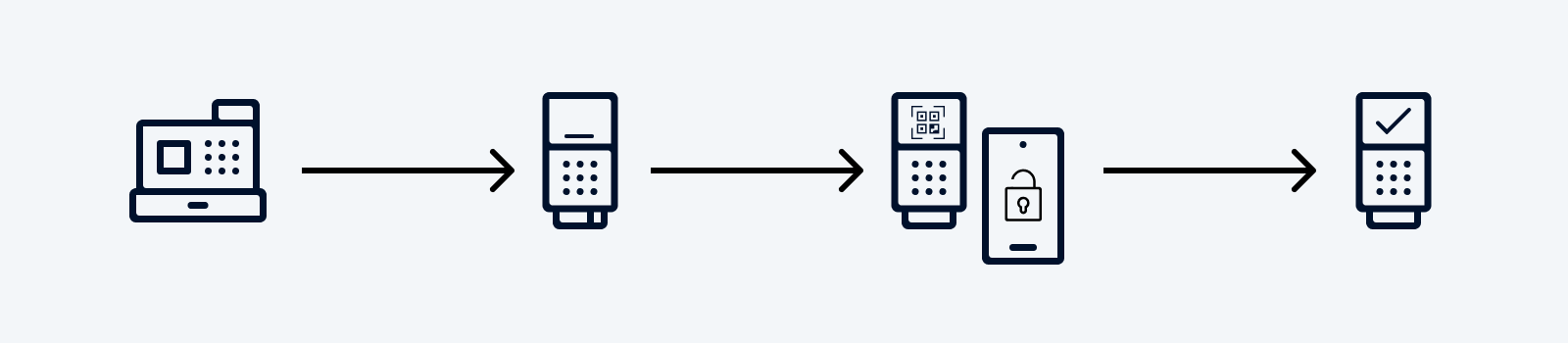 To initiate a QR code payment from your terminal:
-
Make a payment request, as you would for a card payment.
The payment is routed to the terminal. -
On the terminal screen, select the QR code icon, and then select the wallet app that the shopper will use for the payment.
The terminal shows a QR code on the display. - The shopper scans this QR code, and verifies the payment. If you are building a test integration, this payment is automatically Approved after 15 seconds. For IRIS, the test payment result depends on the test amount, as described in this Test and go live section. For information on testing other payment scenarios, such as an abandoned transaction, see Testing QR code wallets. The payment is sent to the Adyen payments platform for processing.
- You receive the result of the payment, as you would receive the result of a card payment.
Initiate from POS app
Using this flow is similar to making a regular payment request, but you additionally specify the wallet app that the shopper will use for the transaction. When you send the payment request to the terminal, this shows a QR code for the specified wallet app. The shopper scans the QR code and verifies the payment. The terminal then sends the payment to Adyen for processing.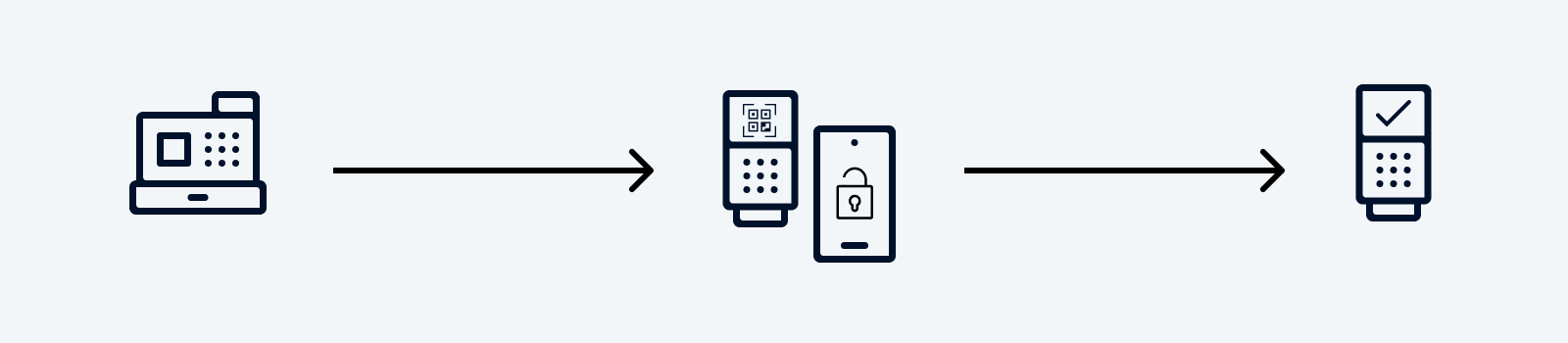 To initiate a QR code payment from your POS app:
- Ask the shopper which wallet app they will use for the payment.
-
Make a payment request including:
-
The PaymentRequest.PaymentTransaction.TransactionConditions array with:
Parameter Required Description AllowedPaymentBrand
The wallet app that the shopper will use for the payment. Use one of the values from the following list.- affirm_pos: shows an Affirm QR code. alipay: shows an Alipay QR code. alipay_hk: shows an AlipayHK QR code. alipay_plus: shows an Alipay+ QR code. atome_pos: shows an Atome QR code. duitnow_pos: shows a DuitNow QR code. grabpay_pos: shows a GrabPay QR code. iris_pos: iris_pos: shows an IRIS QR code. payme_pos: shows a PayMe QR code. paynow_pos: shows a PayNow QR code. paypay_pos: shows a PayPay QR code. pix: shows a PIX QR code. rakutenpay_pos: shows a Rakuten Pay QR code. swish: shows a Swish QR code. twint_pos: shows a TWINT QR code. wechatpay_pos: shows a WeChat Pay QR code. zip_pos: shows a Zip QR code.
This directly shows an Alipay QR code on the terminal display. -
The PaymentRequest.PaymentTransaction.TransactionConditions array with:
- Hand the terminal to the shopper, so they can scan the QR code and verify the payment. If you are building a test integration, this payment is automatically Approved after 15 seconds. For information on testing other payment scenarios, such as an abandoned transaction, see Testing QR code wallets. The payment is sent to the Adyen payments platform for processing.
- You receive the result of the payment, as you would receive the result of a card payment.
Initiate from barcode scanner
To use this flow, your POS system must include a barcode scanner that can read a QR code. This can be an infrared scanner or a camera. Your POS system also needs to translate the QR code into a numerical value. You scan the QR code presented in the wallet app on the shopper’s phone. Your POS app sends this QR code data to Adyen in a payment request, for processing.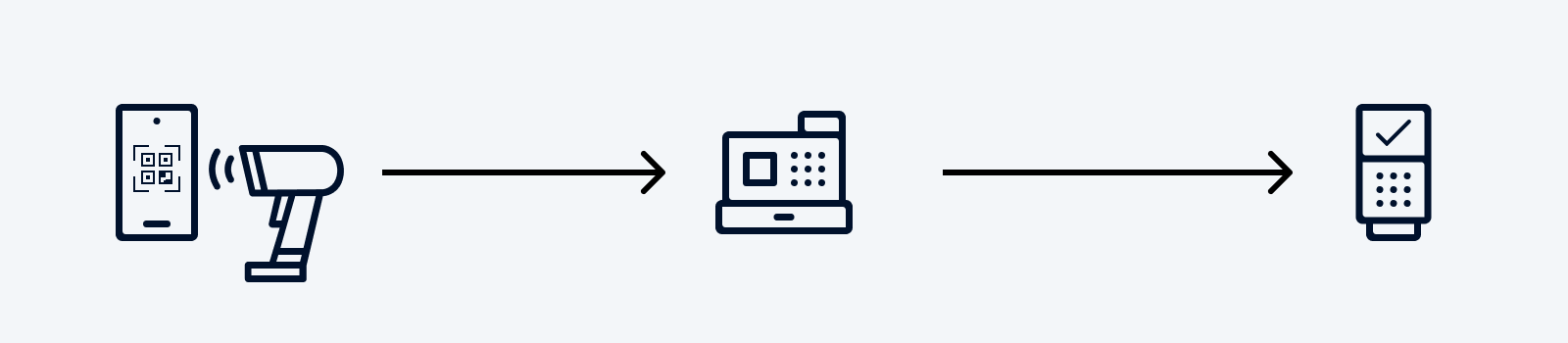 To initiate a QR code payment from your barcode scanner:
- Scan the shopper’s QR code with your barcode scanner.
-
Translate the QR code data into a numeric value, to be passed in the payment request.
For example, the numeric value contains:- 16-24 digits for Alipay.
- 18 digits for WeChat Pay.
-
Make a payment request including:
-
The PaymentRequest.PaymentData.PaymentInstrumentData object with:
Parameter Required Description PaymentInstrumentTypeStoredValue StoredValueAccountIDThe details of the barcode or QR code: StoredValueAccountType: OtherEntryMode: ScannedIdentificationType: BarCodeStoredValueID: A numeric value representing the shopper’s QR code.
For AlipayHK, add the PaymentRequest.PaymentTransaction.TransactionConditions object withAllowedPaymentBrand: alipay_hk.
-
The PaymentRequest.PaymentData.PaymentInstrumentData object with:
- Payment request
- Payment request - AlipayHK
With StoredValueID