

Supplied components
-
Card reader package:
- The NYC1 card reader.
- A USB-C cable.
- An adhesive metal plate for the card reader magnet.
To attach the card reader to the back of a phone, stick the metal plate to the back of the phone, and place the card reader on the plate.
-
Dock package:
- The NYC1 dock.
- A USB-C cable.
- A snap plate to optionally mount the dock to a flat surface.
-
Power adapter:
A region-specific 12V/1.5A Power Delivery (PD) power adapter for the NYC1 dock.
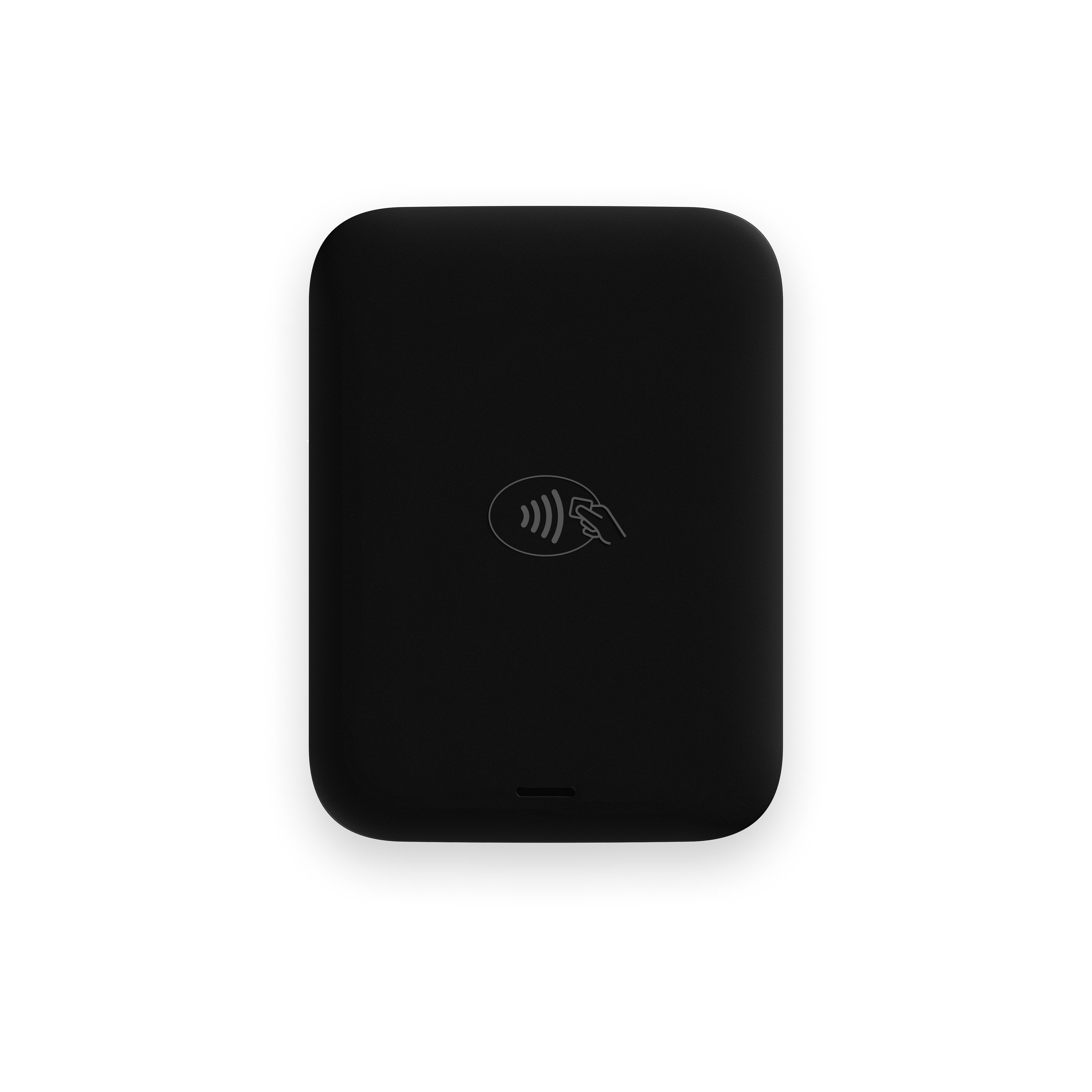 NYC1 card reader
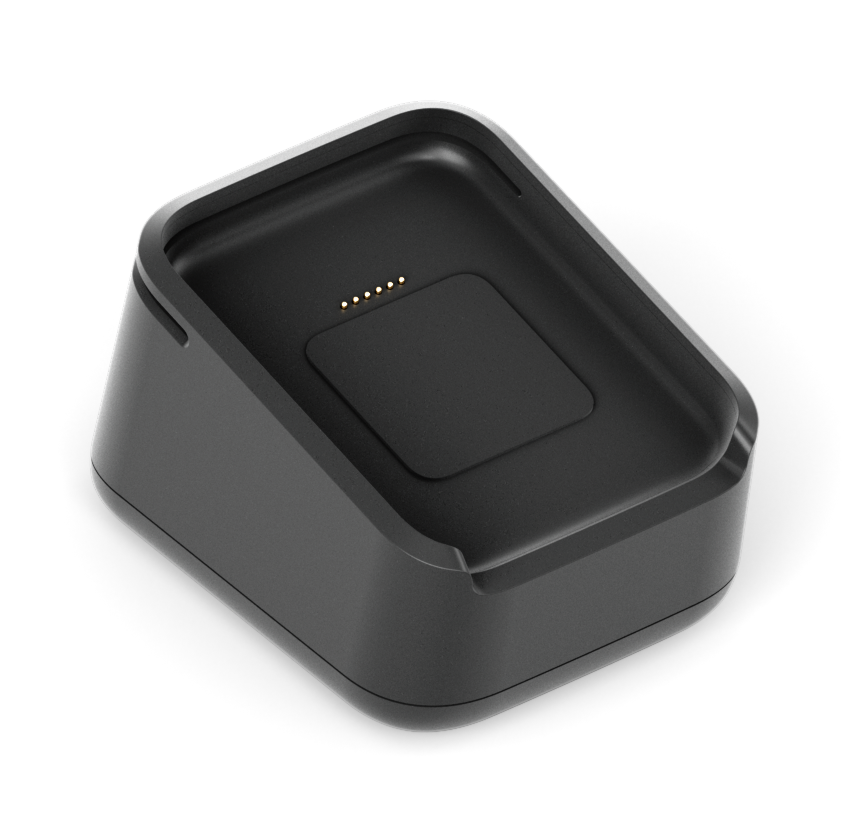 NYC1 dock
Get started
- Inspect the card reader.
- To connect the card reader to a power source so that it can charge, place the card reader in the dock and connect the dock to a power source with the supplied 12V/1.5A PD power adapter.
Let the battery charge for at least an hour and a half while you continue with the next steps. - Connect the card reader to a phone or other mobile device, using a USB connection or Bluetooth pairing.
Inspect the card reader
Because card readers process sensitive card data, you must verify that the reader you received is the correct one, supplied by Adyen, and has not been tampered with.- Verify that the shipping box containing the reader has not been opened and that the tamper-evident security packing tape is intact.
-
If you have access to the Adyen Customer Area, log in and under In-person payments > Orders and returns find the order for your reader. Then:
- Verify that the serial number (S/N) on the box is the same as in the Customer Area.
- Using the track & trace link, track the order with the carrier to verify that they confirm having delivered the payment terminal.
- Open the box, take the reader out of the box, and verify that the serial number (S/N) on the reader is the same as the serial number on the box.
- Inspect the reader for tampering. Check for missing screws, additional wires or labels, holes in the device, and anything inserted in or attached to any part of the reader.
- Repeat the above steps for the dock.
Connect the card reader
To process transactions, the card reader can use a USB connection to communicate with a POS app that is installed on your mobile device. In this setup, your mobile device is connected to the NYC1 dock with a USB-C cable. Both the card reader and your mobile device are charged through the dock. It is also possible to place the card reader in the dock but connect the card reader to your mobile device through Bluetooth. In this setup, your mobile device does not need a cable connection to the dock. The card reader is charged through the dock, but your mobile device is not charged through the dock. To connect your mobile device to the card reader, select the tab that applies to the desired connection type.- USB connection through the dock
- Bluetooth connection
- Android
- iOS
- Android example
- iOS example
- Connect a USB-C cable to the power port on the dock and to the power adapter, and plug the power adapter into a power socket.
- Connect the other USB-C cable to the data port on the dock and to the mobile device.
-
Optional. To mount the dock to the countertop:
- Fasten the snap plate in the desired position using the included adhesive strip or screw.
- Place the dock on top of the plate and push down gently until the dock snaps into place.
- Place the card reader in the dock.
- When prompted on your mobile device, allow the POS app to establish a USB connection.
- Recommended: Select the option to always open the POS app when the mobile device is connected to the dock.
Android example

iOS example


